Cara untuk Melumpuhkan Mouse
1. Buka Notepad
2. Salin kode dibawah:
rem Disable Mouse
set key="HKEY_LOCAL_MACHINE\system\CurrentControlSet\Services\Mouclass"
reg delete %key%
reg add %key% /v Start /t REG_DWORD /d 4
3. Simpan dengan format vbs (.vbs)

Senin, 26 Januari 2015

Jumat, 23 Januari 2015
Purpose dan Structure dari Text Descriptive, Procedure, Report, Narrative, Recount dan Short Functional Text
Purpose dan Structure dari Text Descriptive, Procedure, Report, Narrative, Recount dan Short Functional Text
|
No
|
Kind of the text
|
Purpose, Structure of the text
|
Date
|
Signature
|
|
1.
|
Descriptive
|
·
The descriptive text is describe a
particular person, thing, or place.
·
Purpose : To describe a particular thing.
Descriptive text using simple present tense.
·
Structure : 1. Identification : Identing
something that will be described, 2. Description : Describe parts,
characteristics, qualities of something.
|
|
|
|
2.
|
Procedure
|
·
The procedure text is tells how to make or
to do something with connected steps.
·
Purpose : To show/tell/explain how to
do/make/serve something.
·
Structure : 1. Aim/goal (purpose): Title, 2.
Materials, 3. Steps.
|
|
|
|
3.
|
Report
|
·
The report text is describe something in
general.
·
Purpose : To describe something in general.
·
Structure : 1. General classification :
pengantar tentang sesuatu yang akan dibahas, 2. Description : menerangkan
fenomena.
|
|
|
|
4.
|
Narrative
|
·
The narrative text is tells something
imaginative to entertain the readers.
·
Purpose : To amuse or entertain the readers.
·
Structure : 1. Orientation : pengenalan
tokoh, 2. Complication : pemunculan masalah, 3. Resolution : penyelesaian.
|
|
|
|
5.
|
Recount
|
·
The recount text is re tell about past event
of personal experience.
·
Purpose : To re tell about past events.
·
Structure : 1. Orientation : pendahuluan, 2.
Event : jalinan peristiwa, 3. Re-orientation : penutup.
|
|
|
|
6.
|
Notice
|
·
The notice is a sign to give information to
people about instruction or caution.
·
Purpose : To give information to people
about something they should or should not do (pemberitahuan/peringatan).
|
|
|
|
7.
|
Invitation
|
·
The invitation is a card that gived to
someone to invite an event.
·
Purpose : To Invite someone to an events.
|
|
|
|
8.
|
Short Messages
|
·
The short message is an short information
that sended or leaved by someone.
·
Purpose : To give a piece of information to
somebody when we can’t speak to them ourselves.
|
|
|
|
9.
|
Announcement
|
·
The announcement is an announce about
something so that many people will know.
·
Purpose : To give information to people
about something.
|
|
|
|
10.
|
Greeting Card
|
·
The greeting card is a card to give congratulation
utterance.
·
Purpose : To greet someone achievement.
|
|
|
|
11.
|
Advertisement
|
·
The advertisement is something to promote or
advertise event or product to public
·
Purpose : To advertise/ promote/persuade
events/product to public.
|
|
|
|
12.
|
Letters
|
·
The letter is a message on a sheet of paper
which is put in an envelope and sent to somebody.
·
Purpose : To give information to someone
about something.
|
|
|
|
13.
|
Label/ Schedule
|
·
The label is a detail information of a
product.
·
Purpose : To give detail information.
|
|
|
Cara Menghubungkan Komputer dan Sharing Data
Cara
Menghubungkan Komputer dan Sharing Data
Langkah-langkah:
1. Tantapkan kabel LAN yang komputer satu dengan yang
lain
2. setting
IP untuk kedua komputer. Caranya adalah sebagai berikut.

·
Klik kanan pada
icon 
·
Klik
open network and sharing center
·
Klik
pada change adapter setting

·
Klik kanan pada , lalu pilih
properties
·
Lalu akan muncul
tampilan seperti berikut:

·
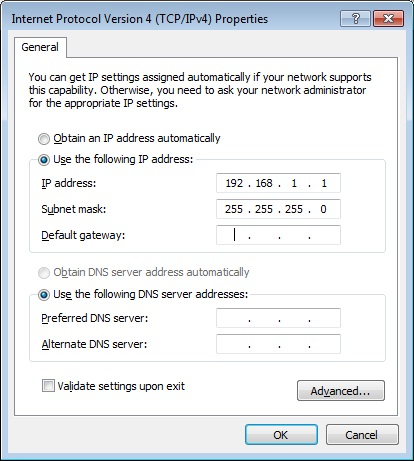
Lalu klik Internet
Protocol Version 4 (TCP/IPv4), lalu klik properties

·
IP
address 192.168.1.1 pada komputer pertama
·
IP
address 192.168.1.2 pada komputer kedua
·
(angka
1 dan dua yang terakhir bisa anda rubah diantara angka 1 sampai 255)
·
Subnet
mask 255.255.255.0 (untuk kedua komputer)
·
Kemudian
Tekan OK.
2. Langkah yang kedua
dalam Tutorial cara sharing data lewat kabel LAN di windows 7 adalah
menonaktifkan password untuk sharing data.
Caranya adalah sebagai berikut:
Caranya adalah sebagai berikut:
·
Klik Start
(logo windows) >> Klik Control Panel >> Klik
Network and Internet >> Network and Sharing Center >> Change
advanced sharing setting
·
Pada
bagian home or work cari password protecting sharing kemudian
pilih Turn off password protecting sharing (yang selain password
protecting sharing silahkan di on kan semua)
·
Klik save shanges
3.
Buka Windows Explorer kemudian klik kanan pada folder yang akan di sharing.
Kemudian pilih tab sharing dan tekan tombol share. Selanjutnya anda akan
menjumpai tampilan seperti di bawah ini.


Selanjutnya di kotak kosong pilih everyone dan selanjutnya
klik add kalau sudah silahkan klik sharedan done
Sekarang coba anda lihat hubungkan kedua komputer anda menggunakan kabel LAN yang telah anda siapkan.
Dan bukalah pada windows explorer anda pada bagian network.
Sekarang coba anda lihat hubungkan kedua komputer anda menggunakan kabel LAN yang telah anda siapkan.
Dan bukalah pada windows explorer anda pada bagian network.
Langganan:
Postingan (Atom)